
On this page
Note: this page mainly covers presentations made with Microsoft PowerPoint. The principles also apply to tools such as Apple Keynote and OpenOffice Impress.
PowerPoint presentations often convey information visually. Slides are frequently shared afterwards so people can review the information at their own pace.
Sharing the presentation also helps people with disabilities. They can revisit the slides at a suitable time, using their own assistive tools.
Presentations therefore need to be digitally accessible, including when shared in another format such as PDF.
This page explains how to improve accessibility in PowerPoint. It covers different types of content and the built-in Accessibility Checker.
Start with templates
One of the easiest ways to make a good start is to use PowerPoint’s built-in templates.
Unlike a blank slide, these already include much of the required information structure, such as headings, lists and reading order. Using templates well can take you a long way.
Find the available templates through New Slide on the Home and Insert tabs.

Images and text alternatives
Slides often convey information visually, summarising what you say aloud. Someone with a visual disability may not be able to access that information directly. Add text alternatives to images so the same information is available as text.
Add text alternatives in either of these ways:
- Right-click the image and choose Edit Alt Text.
- Select the image, open Picture Format and choose Alt Text.

What makes a good text alternative?
A good text alternative is not always just a description of what an image shows. It should convey the information someone would get from seeing the image.
A useful question is: “What would I explain if I could not use an image here?”
The same image may need different alternatives in different contexts. Here is an example: a photo of a drone against a sunset.

A descriptive alternative might be: “Deep orange sunset with a drone silhouetted in the foreground.”
In a photography course, it could be: “The camera is set to expose the sunset correctly, leaving the backlit drone visible as a silhouette.”
For a chart, include the values in the alternative if they are not already available as text on the slide.
Use readable hyperlinks
Slides can contain hyperlinks, just like web pages. You might link to a source or a YouTube video.
For accessibility, keep two things in mind:
- Use link text that describes the destination. Avoid “click here”, which is unclear without context.
- Include the full URL in the presentation.
Not everyone reads slides digitally. Full URLs let people with a printed copy find the websites too.
Tip: place full URLs on the final slides and use shortened versions where appropriate.
Typed or pasted URLs are often converted into clickable links automatically.
To add a hyperlink, select the text and either:
- Choose Link on the Insert tab.
- Right-click the selection and choose Hyperlink.
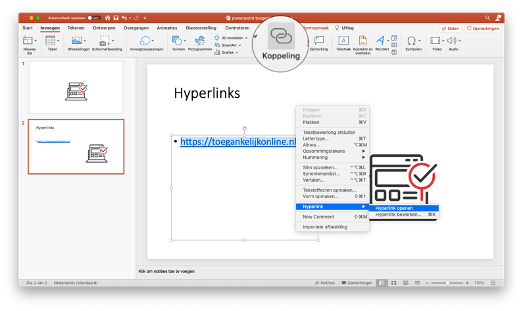
You may need to change a link to clarify its text or correct a typo in the URL.
Use the same Link dialog, or right-click and choose Hyperlink > Edit Hyperlink.
The slide’s link text appears under “Text to display”. You can also change the URL or linked file here.
The “ScreenTip” button lets you change the tooltip shown when someone hovers over the link in presentation view.
Check and adjust reading order
Reading order matters to people using a screen reader. It determines how slide content is announced. Check it carefully, particularly when you add elements to a template.
Check reading order in the Selection Pane, opened through Arrange on the Home tab.
The pane on the right lists the slide’s elements. The reading order runs from bottom to top, which may be unexpected: the first item read is at the bottom. Drag items to the correct position if necessary.

Video and captions
When adding a video, first provide alternative text. This works like image alternatives: use Alt Text on the Video Format tab or through the right-click menu.
In PowerPoint, Space starts and pauses a video. You can include that instruction in the alternative text.
PowerPoint can attach captions to an inserted video. In the versions described here, adding captions is available only in PowerPoint for Windows, while playback with captions also works in other versions.
Select the video, open the Playback tab and choose Insert Captions.
Recent versions use WebVTT (.vtt) files. One way to create these is through YouTube’s captioning interface, then download the file and add it to the presentation.
For older versions, the STAMP (Subtitling Text Add-in for Microsoft PowerPoint) plugin is available. More information:
Transitions and animations
Presentations often use animations, such as elements sliding in from the side. These can make screen reader use slow and frustrating. Parts may be announced repeatedly, or reading focus may return to the start of the slide after each animation.
Also make sure animations do not flash three or more times per second, for example blinking text or alternating images.
Colour
Because presentations are visual, colour is often used to communicate information. People with colour blindness, around 8% of men, may have difficulty distinguishing red and green. Provide other cues too, such as patterns in charts or underlining important text.
Good contrast helps most of your audience, including people sitting in less favourable positions or lighting.
PowerPoint for Windows offers a way to check this. On the View tab, switch to grayscale or black and white and check whether information is lost.
Use speaker notes
Speaker notes were designed to hold extra information that helps presenters remember points not shown on the slides. In presentation mode, the notes appear on the presenter’s screen but not on the audience’s screen.
The notes are text and are accessible to people reading with assistive technology. You can use them to provide additional information that improves accessibility.
For example, explain a chart or table in more detail, or describe elements with unusual alignment that may be harder to interpret with assistive technology.
When using notes this way:
- Be clear and complete. Provide all the information needed, whether that takes a short explanation or a longer one.
- Tell readers on the slides that the notes contain more information. Although the feature is accessible, people may not think to look there.
PowerPoint Accessibility Checker
PowerPoint has a built-in checker for potential accessibility problems. It is a useful place to check, for example, whether all images have been handled appropriately.
On the Review tab, choose Check Accessibility.

The results pane on the right shows findings in three categories:
- Errors: content that is almost or entirely inaccessible, such as missing image alternatives or slide titles.
- Warnings: content that makes the presentation harder to use for many people, such as missing video captions or a custom reading order.
- Tips: opportunities for improvement that are less likely to present a major barrier, such as several slides with the same title.
Save a PowerPoint presentation as PDF
Sometimes you do not want to share the original presentation file. You can save a PDF with tags, which make the document easier to use with screen readers and other assistive technologies.
Note: PDF accessibility has improved considerably, but generating a PDF does not guarantee compliance with applicable requirements. Always check PDFs before publication or have an expert review them.
After applying the recommendations above, export the presentation as a PDF using File > Save As.
Choose a location and select PDF as the file type. Under Options, enable “Document structure tags for accessibility”. Enter a filename and save.
HTML as a first alternative
Making PowerPoint accessible takes attention to many details in the source file. If you cannot share that file, you also need to make the exported PDF accessible.
Consider sharing the presentation’s information as HTML on your website. Open-source tools can create HTML presentations, but a straightforward web page containing the information is often the best option.
Need a hand?
Need help with a presentation, or want to discuss other ways to share your information accessibly? I would be happy to think it through with you.